Your cart is currently empty.


Can the iPhone Duo Replace an iPad for Everyday Work?
Oct
31
2026

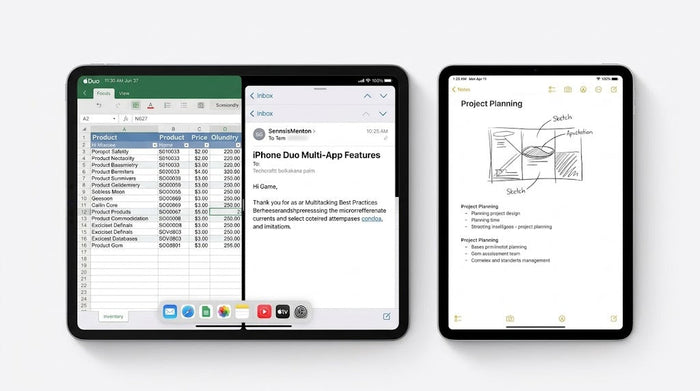
The iPhone Duo lets you work with two applications simultaneously on its 7.6-inch foldable display through Split View. Open the device, rotate it to landscape orientation, and place a second application beside the first. Both apps occupy equal portions of the screen, with no option to adjust their individual widths. You can also use two windows from a compatible app and create shortcuts for your favorite app combinations.
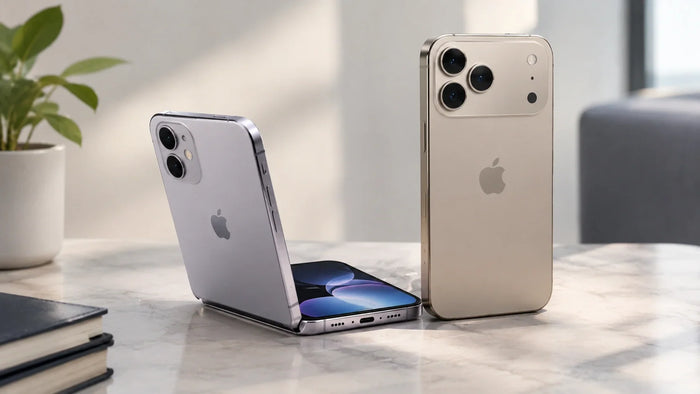
Traditional iPhones generally require users to move between applications rather than view two of them simultaneously. The iPhone Duo offers a different experience. Unfolding the device reveals a 7.6-inch internal display, providing considerably more workspace than its 5.4-inch external screen. iOS 27 takes advantage of this larger panel by allowing compatible applications to appear side by side.
Before reviewing this feature, remember these key details:
For more information about the device's hardware, display and cameras, explore our iPhone Duo specifications guide.
You can activate Split View using either an application that is already running or an icon on your Home Screen. Before starting, unfold the phone and position it horizontally.
Method 1: Begin with an open application
Launch the application you want to use first.
Swipe upwards from the bottom edge and pause around the centre of the display.
Continue the gesture and move the application towards either side of the screen.
Once the Home Screen appears in the vacant section, select your second application or locate it through the App Library.
Method 2: Launch Split View from an app icon
Once you become familiar with these gestures, setting up a split-screen workspace should feel much quicker and more convenient.
Split View provides multiple handy options to organise your workspace once both apps are running.
Change the position of your apps. Move an application to the other side by swiping upwards from its bottom edge, pausing near the middle, and moving it across the display. This lets you change which application appears on the left or right.
Use two windows from one application. Certain apps, including Safari, Notes, Mail and Files, support multiple windows. When supported, you can open another window of the same app and display both windows together. For example, Safari can help you compare separate websites, while Notes can keep two documents visible at once.
Create a frequently used app combination. Tap the divider separating your applications to access the available pairing controls. Where supported, saving the pair allows you to launch both applications together later. This is especially useful if you regularly combine the same tools for work, travel or study.
Exit Split View whenever necessary. Move the divider towards either edge to close the split arrangement and expand the remaining application. You can also return to the Home Screen using the usual swipe gesture.
The best app combinations depend on your routine. Here are five useful examples worth exploring:
Maps and Messages: Keep navigation visible while replying to someone or coordinating a meeting location in Dubai.
Safari and Safari: Compare product listings, hotel options or service prices without repeatedly switching between browser tabs or applications.
Notes and Safari: Research information on one side while recording important details on the other.
Mail and Calendar: Review an invitation while checking your schedule and identifying suitable meeting times.
Translate and Messages: Use translation alongside your conversations when communicating between Arabic and English.
These combinations are examples rather than a fixed list. Their availability depends on the applications and features supported by the device.
Business users can also read our guide to using the iPhone Duo as a business phone for additional ideas.
Although Split View introduces a more flexible way to use an iPhone, there are some limitations worth considering before making a purchase.
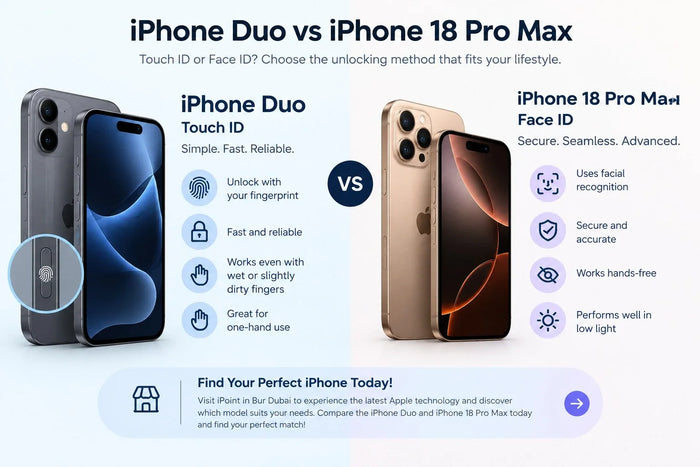
The iPhone Duo and iPhone 18 Pro Max offer different approaches to everyday smartphone use. The Duo focuses on a foldable display and simultaneous app viewing, while the Pro Max offers a traditional large-screen experience.
|
Feature |
iPhone Duo |
iPhone 18 Pro Max |
|
Display configuration |
7.6-inch inner display and 5.4-inch cover screen |
6.9-inch single display |
|
Side-by-side applications |
Split View on the inner display |
Not its primary multitasking feature |
|
Ideal use |
Reading, writing, comparing information and tablet-style tasks |
Photography, everyday communication and conventional smartphone use |
|
Camera zoom |
No telephoto lens, according to the supplied specifications |
Telephoto lens included, according to the supplied specifications |
|
Authentication |
Touch ID |
Face ID |
The iPhone 18 Pro Max provides a spacious display for everyday tasks, but the Duo's unfolded screen is better suited to viewing two applications simultaneously. People who frequently read documents, compare information or handle work on their phones may appreciate the extra workspace.
For a broader feature comparison, visit our iPhone Duo vs iPhone 18 Pro Max guide.
A few simple habits can help you use the Duo's multitasking features more effectively:
The iPhone Duo's Split View feature makes its foldable display more than a way to enjoy larger images and text. It creates additional room for everyday productivity, allowing users to read, research, write and communicate without constantly switching applications.
However, the equal-width layout may not suit everyone, and the experience with third-party apps depends on their compatibility. It is also important to remember that a foldable iPhone and an iPad offer different types of working environments.
If you regularly manage several tasks on your phone, the Duo could be a compelling option. Those who prioritise photography, conventional smartphone handling and everyday messaging may prefer the iPhone 18 Pro Max.
Explore the iPhone Duo product page to review the available information before deciding which device best matches your requirements.
According to the supplied article details, yes. Split View allows two applications to appear alongside each other on the 7.6-inch internal display.
Unfold the device and rotate it horizontally. Open an application, swipe upwards from the bottom, pause around the middle and move the app towards one side. Then select a second application for the remaining space.If available, you can also open Split View from the menu that appears when you press and hold an app icon.
No. The described layout allocates half of the internal display to each application, without a resizing option.
Yes, with applications that support multiple windows. Safari, Notes, Mail and Files are examples identified in the supplied article. Available options may vary by application.
The described pairing feature lets you save frequently used combinations through the divider controls, where supported.
The Split View feature described here is intended for the larger internal display rather than the 5.4-inch cover screen.
Compatibility depends on each developer's implementation. Some applications may need updates to provide an optimised experience in the split-screen layout.
You can explore the iPhone Duo at iPoint. The supplied article also mentions the Bur Dubai Computer Market, delivery in Dubai, a 15-day return window and monthly instalment options. Confirm the current availability and terms directly with the retailer before ordering.
Reading about multitasking is useful, but trying the device can help you decide whether its foldable screen suits your everyday routine.
Visit iPoint in Bur Dubai, call +971 54 746 7083, or browse the iPhone Duo online. You can also compare it with the iPhone 18 Pro Max to determine which smartphone better matches your priorities.

We will send you an email to reset your password
Leave a comment